
Blog
A thin installer and audited engines: the IT-review version
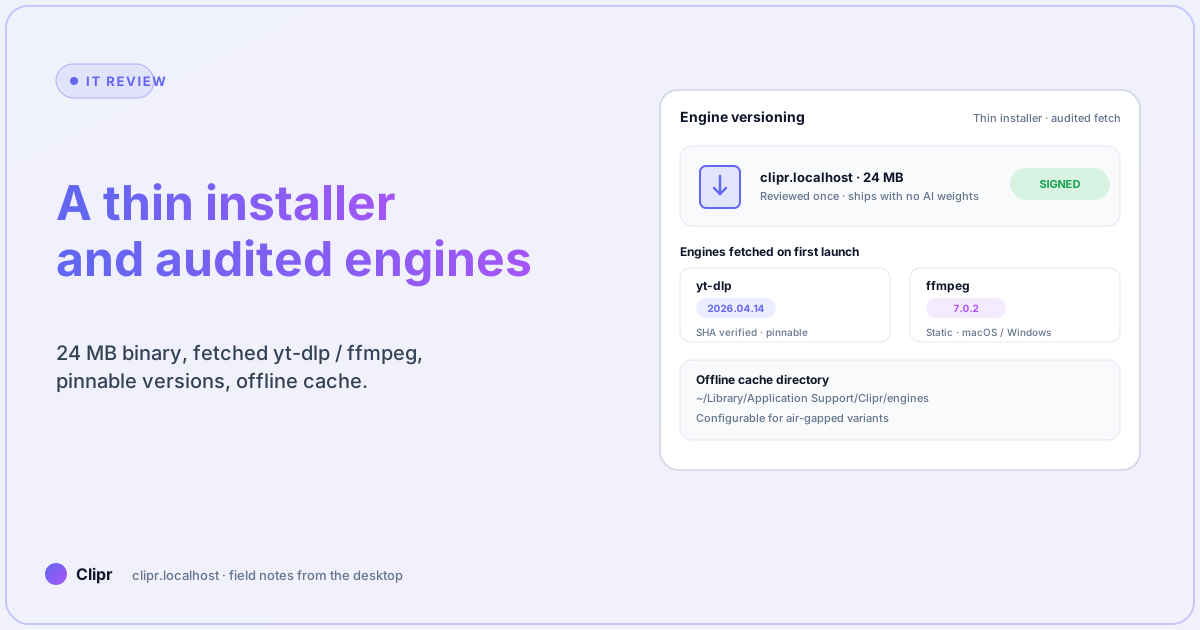
A 24 MB binary, ffmpeg and yt-dlp fetched on first launch with signature checks, pinnable engine versions, and an offline cache that works on air-gapped variants.
· IT, security, engineering, enterprise
Article hero (SVG, 1200×630)
The first thing an IT review asks about a video tool is “what is this binary, and what does it do on day one.” The wrong answer is a 700 MB installer that ships with bundled AI weights, a privileged service, and a launcher that updates itself silently from a CDN nobody recognizes.
The right answer is small, signed, transparent, and pinnable. That is the whole story; the rest of this post is detail.
Here is what trips most people up
Vendors ship “everything in the box” because it makes the first-launch experience smoother. Most IT pushback on creative tools is not anti-functionality; it is anti-bundle. A 24 MB binary that fetches its engines on first launch — with audit logs and pinnable versions — passes review faster than a 700 MB binary that bundles the same engines without telling you when they updated.
What ships in the installer
The Clipr installer is intentionally minimal. As of 2026.04 it contains:
- The Clipr UI binary (Tauri-based, ~18 MB).
- A small license + activation client (~2 MB).
- An updater for the UI itself (~1 MB).
- The license terms, EULA, and privacy notice (~3 MB of static assets).
That is it. No AI model weights. No video engine. No bundled fonts. The total is 24 MB compressed; ~60 MB on disk. That is small enough that an IT pilot can review it manually if they want.
Engines (yt-dlp, ffmpeg) are fetched on first launch from a signed source, with checksum verification before they execute. We deliberately do not bundle them, because:
- Their update cadence is faster than ours.
- Bundling means we certify a version; fetching means we audit a version.
- Air-gapped variants need a documented engine path anyway; making the path the default keeps the surface honest.
The engine fetch flow
On first launch:
- The UI checks for a local engine cache at
~/Library/Application Support/Clipr/engines(macOS) or%LOCALAPPDATA%\Clipr\engines(Windows). - If absent, it fetches the latest pinned version of yt-dlp and ffmpeg over HTTPS from a signed manifest hosted at
clipr.localhost/engines/manifest.json. - Each downloaded binary is checksum-verified against the manifest’s SHA-256 before being marked as executable.
- The activation log records: version, checksum, timestamp, source URL.
That log file is what an IT auditor wants to see. It answers “what version of yt-dlp ran my October captures” without anyone having to remember.
Pinning engines
For shops that need to certify a specific engine version (most regulated industries, all government deployments):
- The Settings → Engines panel shows installed versions with a “pin” toggle.
- Pinned versions do not auto-upgrade with the UI.
- You can pre-stage a specific version by dropping it in the engines directory before first launch.
- The audit log distinguishes between “auto-fetched” and “pre-staged” sources.
The version pinning is a checkbox in the UI on purpose. A flag-driven config file would be more enterprise-feeling but less readable for the IT lead doing the review at 16:00 on a Friday.
Offline cache for air-gapped variants
The default flow assumes internet. The air-gapped flow does not. If your environment forbids outbound connections from the workstation:
- Download the engine bundle on a connected machine:
clipr.localhost/engines/bundle-2026.04.zip(signed, ~80 MB for both engines on both platforms). - Verify the bundle signature with the published public key (linked from the download page).
- Extract into the workstation’s engines directory (path is configurable in
clipr.toml). - Set
engine_fetch = "disabled"in the config to suppress the first-launch fetch.
The Clipr UI runs end-to-end without an internet connection on this configuration. License activation supports an offline activation file flow for environments that do not allow online activation. Both flows are documented; this is not a hidden feature.
What the binary does NOT do
Worth stating out loud, because IT reviews ask:
- It does not run a privileged background service. No daemon, no helper, no sudo prompt during install.
- It does not auto-launch on system start unless you enable the option.
- It does not phone home with telemetry; analytics is opt-in and aggregated (the pricing page calls this out under “Local-first by default”).
- It does not modify system network settings, DNS, or proxy configuration.
- It does not register a custom URL scheme without user consent (the install flow asks).
- It does not install or modify codecs at the system level. Engines live in the user-scoped cache.
If you are doing the IT review, those bullets are the ones that usually move the conversation.
Code signing and notarization
- macOS: signed with an Apple Developer ID, notarized by Apple, hardened runtime, no entitlements beyond what the embedded browser requires. Verifiable via
codesign -dvvandspctl --assess. - Windows: signed with an EV code-signing cert, SmartScreen-cleared as the cert ages. Verifiable via
signtool verify /pa. - Linux (planned): AppImage signed with a published GPG key plus optional native packages from a signed repo.
If a binary fails any of these checks, do not run it. Re-download from the official URL and verify the signature.
Updater behavior
The UI updater follows three rules:
- Never auto-update without consent. The default is “notify on new release,” not “install on next launch.”
- Background downloads are off by default. The updater checks for a new version on launch and asks; it does not pre-fetch.
- Engines update on a separate cadence. The UI updater does not roll engines forward; the engines updater is opt-in per engine.
Enterprise deployments can fully disable the updater via a policy file, in which case the UI checks the policy on launch and does not even attempt to phone home.
What if it does not work?
- First launch hangs on engine fetch: the manifest URL is unreachable from your network. Check egress rules; the manifest is on
clipr.localhost, not a third-party CDN. As a workaround, pre-stage the engine bundle from another machine. spctlrejects the binary on macOS: re-download; the most common cause is a partial download from a flaky CDN, not a signing issue.- SmartScreen warns on Windows for a fresh release: the EV cert reputation builds over time; warnings on the first 24 hours of a release are common and benign. Verify the signature with
signtool verify /pabefore dismissing. - Air-gapped install needs license activation: use the offline activation file flow; the download page links to the documentation.
- Auditor wants a list of every engine version that has run: the activation log at
~/Library/Application Support/Clipr/audit.log(macOS) is append-only and contains exactly that. - Compliance team wants a SOC2 letter or pen-test report: contact us via the email on the pricing page; we treat these as standard requests, not edge cases.
A note on supply-chain transparency
We are not pretending the supply chain is invisible. The engines we fetch are open-source projects we do not maintain, and that is a feature; you can verify upstream against the canonical project for both yt-dlp and ffmpeg. The Clipr-side promise is:
- Reproducibility: the manifest pins specific tags, not “latest.”
- Auditability: every fetch is logged with checksum.
- Reversibility: pinning lets you stay on a known-good version even when upstream moves.
If you want a deeper review for an enterprise pilot, get in touch — the email lives on the pricing page.
Closing
The pitch for IT is short: small binary, fetched engines, pinned versions, signed everything, no daemons. The pitch for the editor is shorter: it works without you having to think about any of the above. Those are not in conflict; they are the same architecture viewed from two ends.
To inspect the install footprint yourself, download the beta and check the binary against the published checksums. For the per-feature description of the engine handling, see features.