
Blog
A clip cutter that prefers no re-encode
Stream-copy cuts on GOP boundaries, lightweight transcode only when containers disagree, and per-frame in/out points that do not waste an afternoon waiting for ffmpeg.
· clip, editing, ffmpeg, workflow
Article hero (SVG, 1200×630)
A producer wants the 03:24 mark to 04:18 from a 90-minute master, with the original codec, ready to drop into Premiere in five minutes. The lazy answer is “load it into the NLE, set in/out, render.” That works. It also asks a 12-core laptop to spend twenty minutes re-encoding 90 minutes of bytes you do not actually need.
The right answer is to copy the bytes you need, in the codec they already are, and only fall back to re-encode when the math says you must.
Here is what trips most people up
Operators set arbitrary in/out times and assume the cutter will be exact. Most “the cut is two frames off” complaints come from cutting on non-keyframe boundaries with stream-copy semantics, which is a math problem, not a tool problem. Stream-copy cuts at the closest keyframe (GOP boundary) before your in-point; if the GOP is 2 seconds, your cut might land 1.8 seconds early. The fix is not to ban stream-copy; the fix is to know when GOPs allow it and when they do not.
The three-tier cut decision
When the cutter sees an in/out request, it should pick one of three strategies:
- Stream-copy on GOP boundaries (preferred): the in-point is at or after a keyframe; copy the bytes verbatim, no re-encode. Sub-second per minute of source. Lossless.
- Lightweight re-encode of the head (fallback): the in-point lands mid-GOP. Re-encode the first GOP to land on the requested frame, then stream-copy the rest. ~2–4 seconds per cut. Lossless after the first GOP.
- Full re-encode (escape hatch): the source has B-frames the container cannot stitch, or the requested in/out cross a codec change inside the file. ~30–90 seconds per minute of cut. The cost of being correct.
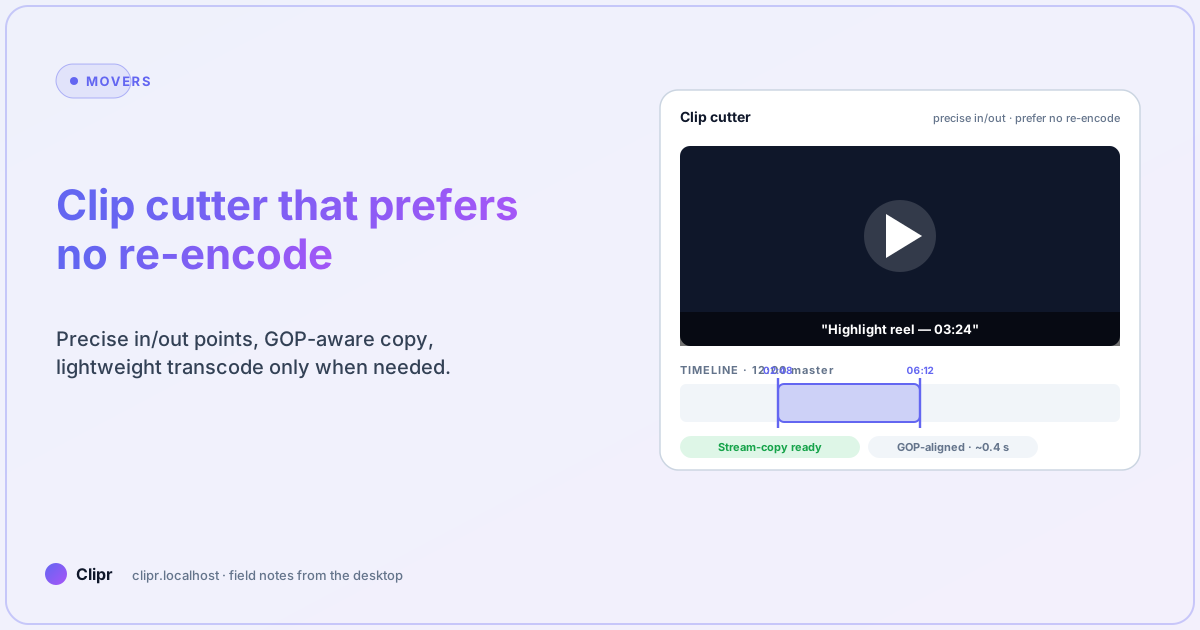
A good cutter shows you which tier it picked before the cut, so you can adjust the in-point by 0.4 seconds and drop from tier 2 to tier 1. The Clipr cutter exposes this via a small badge on the timeline — see the per-feature descriptions on features for the per-audience view.
When stream-copy is actually safe
Stream-copy is safe when:
- The source codec is one the container can losslessly carry (H.264 in MP4, HEVC in MOV/MP4, AV1 in WebM/MP4).
- The in-point is at or just after a keyframe.
- The out-point is at any frame; cutting “long” is fine.
- You do not need to re-mux the audio across a codec boundary.
It is not safe when:
- The source has open-GOP B-frames that reference frames outside your cut window.
- You are joining two clips of different resolutions/codecs into one output.
- The container is one of the legacy formats (FLV, certain TS variants) that lie about timing.
If your daily work is YouTube/TikTok/Bilibili pulls, you are almost always in the safe zone. If your daily work is broadcast tape captures, you almost never are.
In/out keyboard model
A clip cutter that requires the mouse for every action will lose to one that does not. The Clipr keyboard model:
J / K / L: shuttle reverse / pause / forward (NLE-standard).I / O: set in / out at the playhead.← / →: nudge playhead one frame.Shift + ← / →: nudge playhead one second.[ / ]: snap in/out to nearest keyframe (drops you to tier 1 if you are in tier 2).Enter: render with the current strategy.
The [ and ] snaps are the underrated keys. One press moves your in-point to the nearest keyframe; if the badge changes from “lightweight re-encode” to “stream-copy,” you just saved the queue 4 seconds. Across 200 clips a week, that is real time.
Batch the same window across siblings
When a producer wants “the same 30-second cold open” trimmed off 60 episodes, you do not want to re-set in/out 60 times. The right shape:
- Set in/out on episode 1 with
[ / ]snapping. - Apply the window to the next 59 episodes via “batch apply window.”
- Let the cutter pick stream-copy or fallback per episode (different episodes, different GOP boundaries).
- Render in parallel (4 workers on a laptop, 8 on a desktop).
The wall-clock for 60 episodes drops from a Saturday afternoon to a coffee break. The error rate drops too — humans miss-set in/out by a frame; a saved window does not.
Audio handling at the cut boundary
Audio is the part nobody thinks about until it pops at the cut. Stream-copy audio works fine within a single audio track; cutting across an audio codec change (AAC to Opus, etc.) requires a re-encode of the audio side even if the video side is stream-copy. The Clipr cutter detects this and shows it as “audio re-encode” on the badge — almost always cheap (~1–2 seconds per minute).
If you hear pops at the in-point, the cause is usually one of:
- The cut landed mid-AAC-frame (rare in modern AAC, common in legacy AAC-LC).
- The downstream player is doing its own normalization that overshoots at the boundary.
- Loudness pass on the master was set to apply at the export stage, not the master stage. Move it back to the master.
Test on the platform’s actual player. NLE previews lie about pops at boundaries.
What if it does not work?
- Cut is 2 frames late: the in-point landed mid-GOP and stream-copy snapped backward to the previous keyframe. Press
[to snap forward, accept the head-of-GOP re-encode, and lose 2 frames at the start instead of 0. - Output file does not play: the muxer wrote a B-frame reference outside the cut window. Switch to “lightweight re-encode of head” and try again.
- Output is huge: full re-encode used a high-bitrate default. Set an explicit target bitrate or CRF when you fall back to tier 3.
- Audio drift across many short cuts joined in sequence: each cut snapped audio independently; the cumulative drift adds up. Re-encode the audio to a fresh AAC pass after the join.
- Cut runs slow on a fast machine: disk I/O bound on a USB drive; move the working folder to internal NVMe.
When to skip the cutter and just use ffmpeg
Sometimes you have a one-off, you know the in-point is GOP-aligned, and the file is 600 MB. A two-line ffmpeg command:
ffmpeg -ss 00:03:24 -to 00:04:18 -i input.mp4 -c copy output.mp4…will get you the cut in three seconds and you can stop reading this post. The point of the cutter is not to replace ffmpeg; it is to give you the same speed when the in/out is not GOP-aligned, when there are 60 of them, and when you want a UI rather than a transcript.
Closing
A clip cutter is one of those tools where the fastest design is “do less, but be honest about it.” Stream-copy when the math allows, lightweight re-encode the head when it does not, full re-encode only as an escape hatch. Surface which strategy you picked. Snap to keyframes on a keyboard shortcut. Batch the same window across siblings.
Pull all four levers and a 60-clip job stops being an afternoon of fan noise. For the cutter UI in the desktop app, download the beta. For tier limits on batch parallelism, see pricing.